
Tour of the Hub
Top-level navigation patterns — organization switcher, sidebar, environment header, tab strip.
A quick map of how to get around the Hub. The patterns are consistent across desktop and mobile.
Organization switcher
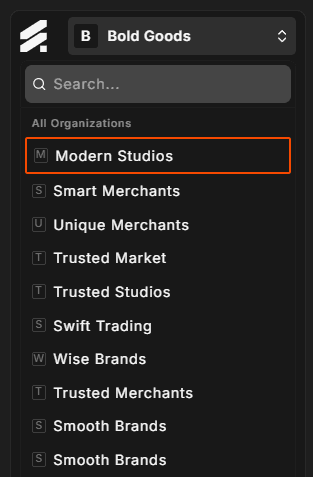
In the top-left of the sidebar you'll find the organization switcher — a button showing your current organization name and logo. Click it to open a dropdown that lists every organization you belong to. If you're part of multiple organizations (for example, your own and an agency you collaborate with), selecting one reloads the page in the context of that organization.
The dropdown includes a search field so you can filter by name when the list is long.
Sidebar
The left sidebar is divided into two sections:
Main navigation:
- Projects the default landing area, listing every environment in your current organization
Organization:
- General organization name, logo, and URL slug
- Members invite teammates, change roles, remove members
- Providers add and manage cloud provider API tokens (Hetzner, DigitalOcean, Linode and UpCloud)
- SSH Keys org-wide SSH public keys applied to all environments at provision time
- Billing subscription plan, invoices, and payment method
Your user avatar at the bottom of the sidebar opens account-level settings: profile, security (password, MFA, sessions), and notification preferences.
On mobile the sidebar collapses into a menu you open with the icon in the top-left corner of the screen.

Environment header
When you open an environment from the Projects list, the top of the page shows a header card with:
- Environment type a label above the name (for example, "Production" or "Staging")
- Environment name the display name you gave the environment
- Lifecycle status badge the current state (Active, Provisioning, Suspended, and so on)
- Storefront URL click to copy the full domain to your clipboard
- Server IP click to copy the IP address to your clipboard
- Action buttons:
- Store opens the Magento storefront in a new tab
- Admin opens the Magento admin panel in a new tab
- Claude opens a new Claude Code session in the Console tab
- Codeserver opens a VS Code-in-browser session (desktop only; shown when the environment's Codeserver is available)

Tab strip
Inside the environment view, a tab strip across the top switches between feature areas:
- Overview KPIs and metrics summary
- Traffic real-time visitor and request data
- Containers service health per Docker container
- Logs platform (Magento application) and container log streams
- Deployments deployment history and actions
- Console multi-tab Claude Code and Bash terminal
- Settings environment-level configuration (SSH keys, custom domains, backups, resize, destroy)

Each tab is documented separately under /hub/environments.
Where things live
Quick reference for common Hub tasks:
| Task | Where |
|---|---|
| Provision a new environment | Projects → + New environment |
| Add a cloud provider token | Organization → Providers |
| Invite a team member | Organization → Members |
| View invoices and billing | Organization → Billing |
| Manage org-wide SSH keys | Organization → SSH Keys |
| Edit your profile | User avatar → Account → Profile |
| Change your password or enable MFA | User avatar → Account → Security |
| SSH keys (per-environment) | Environment → Settings → SSH keys |
| Custom domains | Environment → Settings → Domains |
| Open Claude Code | Environment → Console tab → + New (Claude mode) |
| Open Codeserver | Environment header → Codeserver button (desktop, when available) |
| Switch organizations | Organization switcher in the top-left of the sidebar |