
Provisioning failed
Common reasons why environment provisioning fails and how to fix each one.
An environment enters the "Failed" state when the provisioning job cannot complete. The job runs with up to five automatic retries before giving up. When all retries are exhausted, the environment is marked "Failed" and the Hub surfaces the last error.
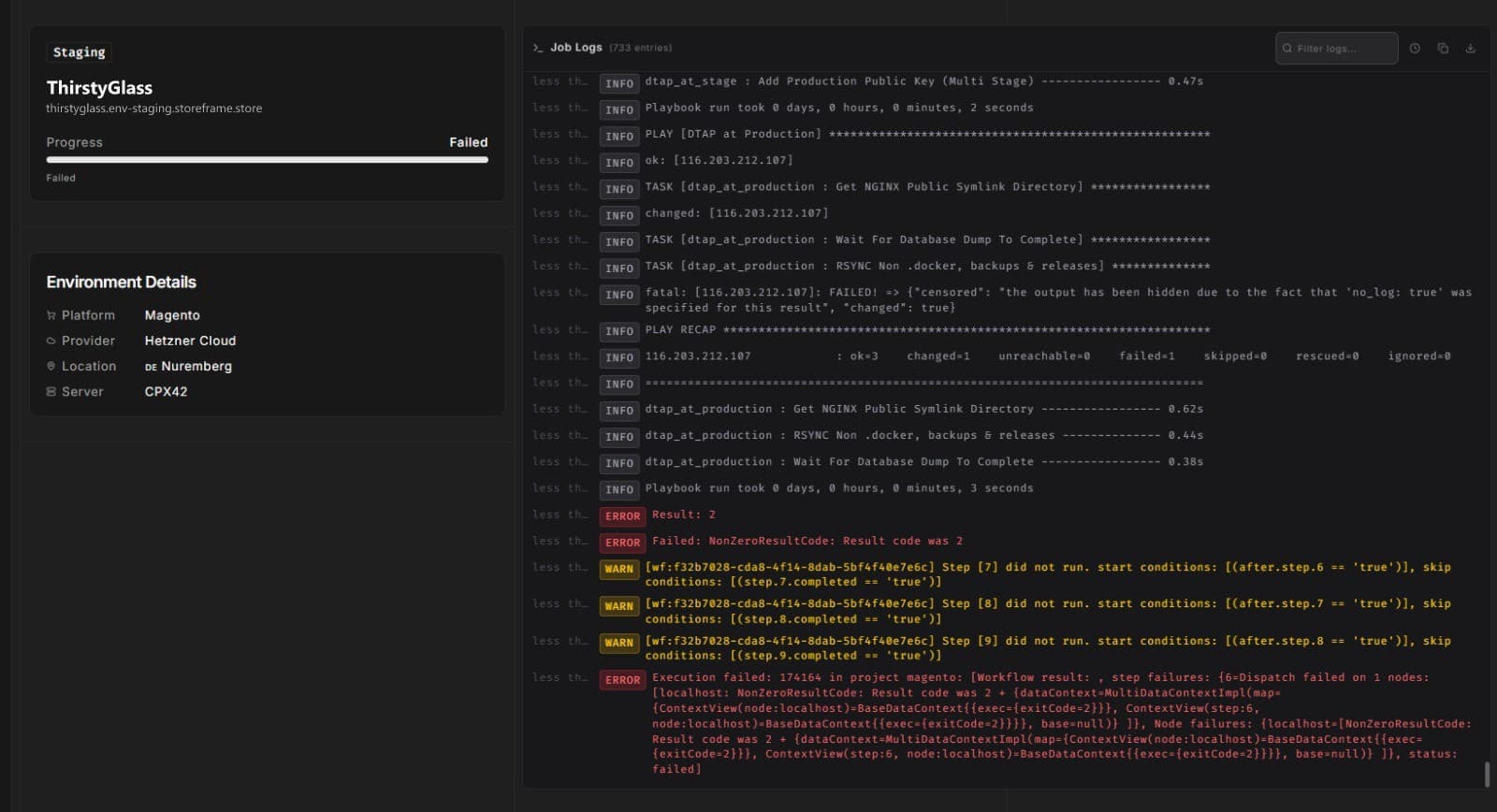
The error message displayed in the Hub is the most direct diagnostic signal. The sections below cover the common failure modes.
Provider quota exhausted
What you see: Provision fails quickly, often in the first minute. The error references the cloud provider (Hetzner, Linode, UpCloud, DigitalOcean) and mentions capacity or limits.
Cause: Your provider account has hit its server or resource limit. StoreFrame calls the provider API to create the VM and the API returns a quota error.
Fix:
- Log in to your provider console (e.g., Hetzner Cloud Console).
- Review current server count and account limits.
- Delete unused servers, or request a quota increase from the provider.
- Once quota is freed, return to the Hub and use the Retry button on the failed environment.
Region capacity
What you see: Provision fails with an error referencing availability or capacity in a specific region.
Cause: The cloud provider does not have inventory of the chosen server type in the selected region at that moment. This is a provider-side constraint.
Fix:
- In the Hub, destroy the failed environment (or leave it — destroyed environments release the slot).
- Start a new provision from the wizard and select a different region or a different server type in the same region.
- If you need a specific region and it is consistently unavailable, file a ticket — support can advise on regional availability patterns for your provider.
Token permissions
What you see: Provision fails early and the error references authentication, permissions, or an invalid token.
Cause: The provider API token registered under Settings → Organization → Providers does not have Read+Write permissions. A read-only token lets StoreFrame list resources but not create servers, floating IPs, or firewall rules.
Fix:
- Log in to your provider console and generate a new API token with full Read+Write permissions.
- In the Hub, go to Settings → Organization → Providers, delete the old token, and add the new one.
- Retry provisioning.
Subdomain already in use
What you see: The wizard shows "This environment subdomain is already in use. Please choose a different suffix." before or during provisioning.
Cause: The subdomain you requested is already assigned to another environment in the system (even a destroyed one, depending on reclaim timing).
Fix: Choose a different subdomain in the wizard. Subdomains must be globally unique within storeframe.store.
Job retry exhaustion
What you see: The environment transitions through "Provisioning" for an extended period, then lands in "Failed." The error may say the job timed out or all retries were exhausted.
Cause: The provisioning job was retried the maximum number of times (five retries by default) and all attempts failed. This can happen when:
- The cloud provider API is intermittently slow or unavailable
- The VM started but the configuration step timed out
- A network issue prevented the Hub from reaching the provider during the polling window
Fix:
- Check if your cloud provider has a status incident at the time of failure.
- Use the Retry button in the Hub to trigger a fresh provisioning run from a clean state.
- If retries fail repeatedly at the same step, file a ticket with the environment ID and the time of failure.
Healthcheck timeout
What you see: The VM is created but provisioning stalls near completion — progress stops around 80–95%. The environment eventually fails with a timeout or healthcheck error.
Cause: The VM was created and the containerized stack started, but Magento is not responding within the expected healthcheck window. Common sub-causes:
- The Magento application failed to install (database connection error, invalid credentials in the environment file)
- PHP-FPM or FrankenPHP failed to start (memory limits, PHP configuration issue)
- The domain/subdomain used in the install did not match what the stack expected
Fix:
- Retry the provision — transient startup failures resolve on a clean retry.
- If the retry also fails at the same stage, file a ticket with the environment ID. Support will check the provisioning logs to identify which step failed.
After resolving a failure
A failed environment keeps its slot reserved until you either retry or destroy it. The Retry button attempts the provision again from scratch. The Destroy button removes the environment record and releases the slot.
If the same environment fails repeatedly despite a valid provider setup, file a support ticket with the environment ID and the error text — the team has access to the full provisioning trace.