Settings overview
Two kinds of settings in Hub — personal account settings and organization settings.
Hub has two distinct kinds of settings. Understanding which one you need saves time.
Account settings
Account settings are personal — they affect only you, not anyone else in your organization.
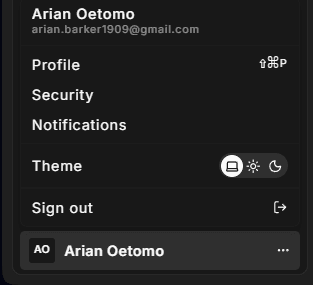
You reach them through the user avatar at the bottom of the left sidebar. Click your avatar to open the user menu, then select Account. From there you will find three sections:
- Profile your name, phone number, email address, and display preferences (language, theme)
- Security active sessions, multi-factor authentication, password, and connected OAuth accounts
- Notifications which emails Hub sends you and which you can switch off
These settings are scoped to your user account. Changing your name or theme here has no effect on your colleagues.
Organization settings
Organization settings are shared — changes affect every member of the organization.
You reach them through the Organization group in the left sidebar. Items such as general details, members, invitations, and billing live here.
Organization settings are documented in the organization settings section.
Quick reference
| What you want to change | Where to go |
|---|---|
| Your name or phone | User avatar → Account → Profile |
| Hub theme (light / dark / system) | User avatar → Account → Profile |
| Interface language | User avatar → Account → Profile |
| Sign out other devices | User avatar → Account → Security |
| Enable two-factor authentication | User avatar → Account → Security |
| Your password | User avatar → Account → Security |
| Connected Google or Microsoft account | User avatar → Account → Security |
| Email notification preferences | User avatar → Account → Notifications |
| Organization name or logo | Sidebar → Organization → General |
| Invite or remove members | Sidebar → Organization → Members |
| Billing and subscriptions | Sidebar → Organization → Billing |