
Security
Manage active sessions, two-factor authentication, password, and connected OAuth accounts.
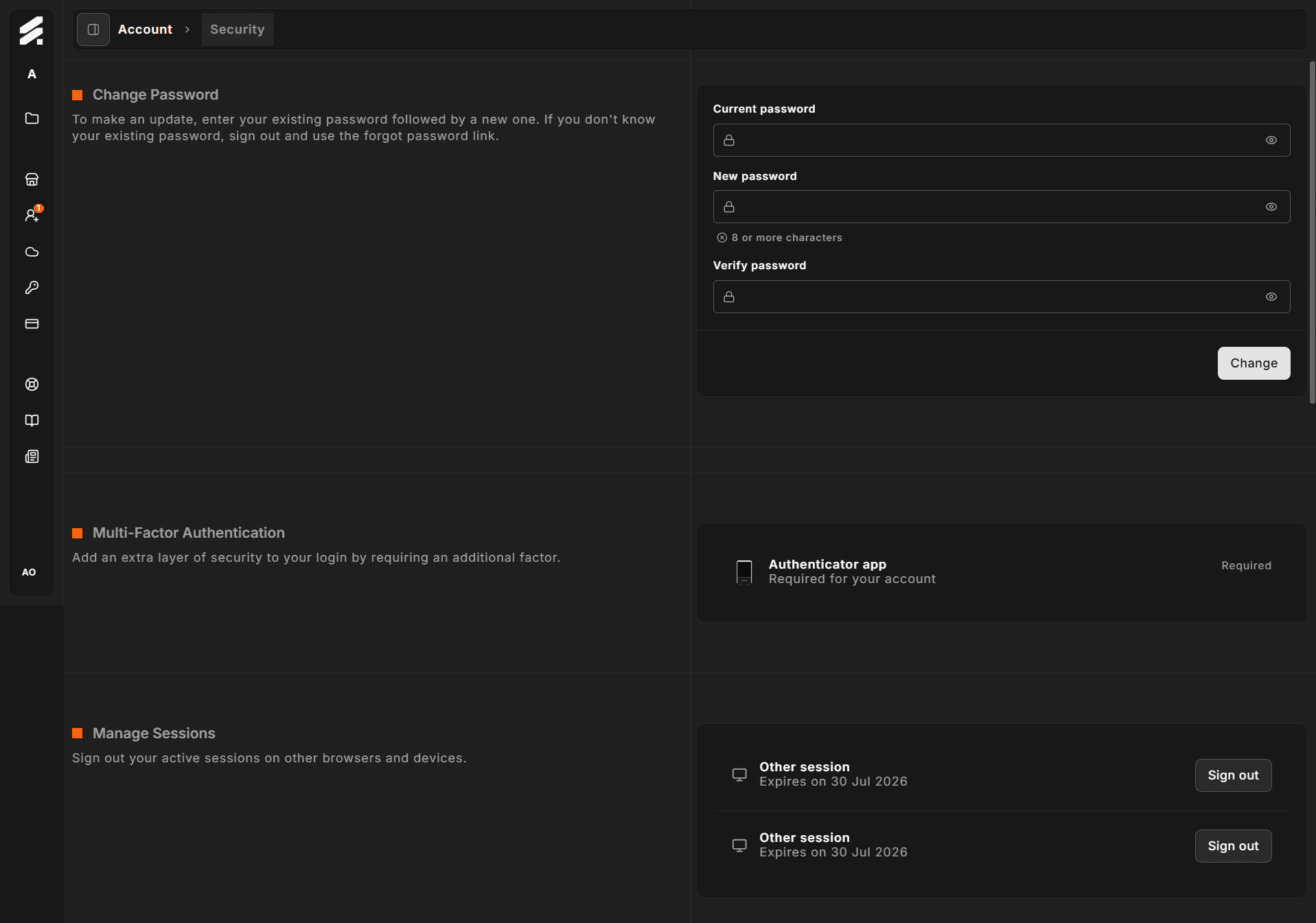
The Security page groups four independent panels: Sessions, Multi-factor authentication, Password, and Connected accounts. Together they control how your account is accessed and protected.
Navigate there via user avatar → Account → Security.
Sessions
The Sessions panel lists every active login session for your account. Each row shows whether the session is your current one, and when it expires.
Click Sign out on any row to immediately revoke that session. If you sign out the current session, you are redirected to the login page. Use this to remove access from a device you no longer use or that you believe has been compromised.
Sessions do not show browser or device names — only whether they are current and their expiry date.
Multi-factor authentication
Protect your account with a time-based one-time password (TOTP) authenticator app. Any standard TOTP app (such as Google Authenticator, Authy, or 1Password) works.
Enabling MFA
- Click Enable next to "Authenticator app."
- Hub generates a QR code and a manual entry key. Scan the QR code with your authenticator app.
- Enter the six-digit code shown in your app to confirm setup.
- Hub displays a set of one-time recovery codes. Save these somewhere secure. You need a recovery code if you lose access to your authenticator app.
Once enabled, the panel shows "Enabled" and the button changes to Disable.
Disabling MFA
Click Disable and confirm. Recovery codes are invalidated at the same time. You can re-enable MFA at any time.
Password
This panel lets you set or change your login password.
| Field | Notes |
|---|---|
| Current password | Required if a password is already set. Shown as disabled with "No password set yet." if you signed up via OAuth. |
| New password | Must meet the strength requirements shown inline below the field. |
| Verify password | Must match the new password exactly. |
Click Change to apply. If you signed up through a connected account (Google or Microsoft) and have never set a password, leave Current password empty — Hub treats this as an initial password set.
Connected accounts
Connect an OAuth provider so you can sign in with a single click instead of typing a password.
| Provider | Status |
|---|---|
| Connect / Disconnect | |
| Microsoft | Connect / Disconnect |
Click Connect to link the provider. You are redirected to the provider's authorization screen and then returned to Hub. Once linked, the status shows "Connected" and a Disconnect button appears.
You can disconnect a provider at any time. If you disconnect all providers and have no password set, set a password first to avoid being locked out of your account.
Related pages
- Profile — personal details and preferences
- Notifications — email preferences