
Billing
Manage your payment method, billing address, slot plan, invoices, and billing contact email.
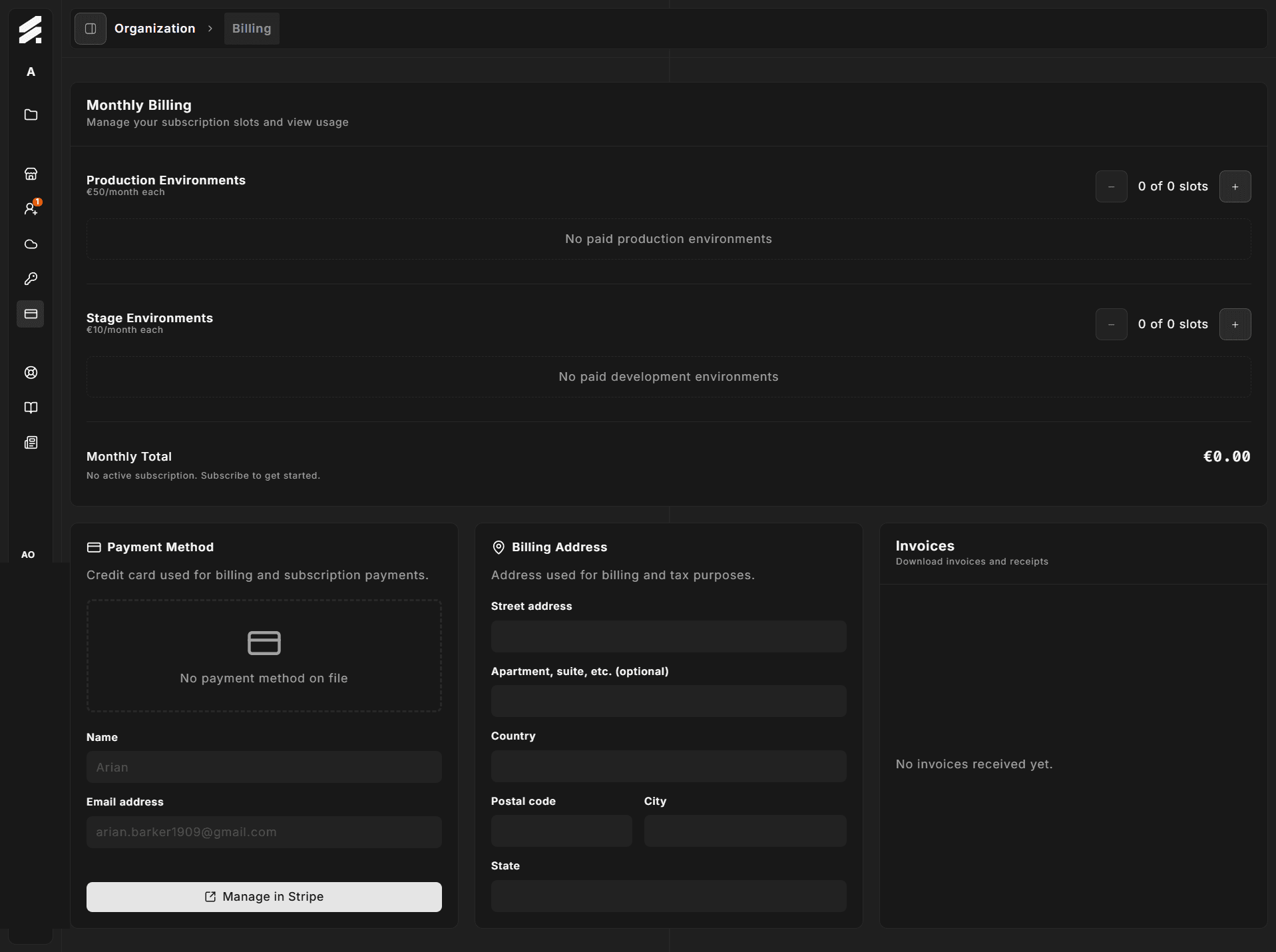
The Billing page brings together all financial controls for your organization in one place. It is divided into five cards: Payment Method, Billing Address, Monthly Billing, Invoices, and Billing Email.
Navigate there via Settings → Organization → Billing.
Payment method
The Payment Method card shows the credit card on file for your Stripe subscription.
When a card is saved, you see:
- Card brand (Visa, Mastercard, American Express, etc.)
- Last 4 digits and expiry date
- The billing name and email address associated with the card
When no card is on file, the card area shows a dashed placeholder.
Click Manage in Stripe to open the Stripe Customer Portal in a new tab. From there you can:
- Add or replace the payment method
- Download past invoices
- Update the billing name
Changes made in Stripe sync back to Hub within seconds.
Billing address
The Billing Address card displays the address associated with your Stripe customer record. Fields shown are street address, apartment/suite, country, postal code, city, and state.
These fields are read-only in Hub. To update them, click Manage in Stripe on the Payment Method card and edit the address there.
The billing address is used for tax purposes and appears on your invoices.
Monthly billing
The Monthly Billing card is the slot management surface. StoreFrame bills by slot, not by individual environments.
| Slot type | Price | What it covers |
|---|---|---|
| Project slot | €50/month | One production environment |
| Stage slot | €10/month | One staging, development, or test environment |
Slot controls
Each section (Production Environments, Stage Environments) has a + button to add a slot. It opens a confirmation dialog before any change is applied.
- Adding a slot creates a Stripe subscription item and triggers an immediate prorated charge for the remaining days of the billing cycle.
- Slots cannot be removed by hand. A paid slot stays available until the end of the current billing period. Slots with no environment when the period ends are not billed for the next one.
- There is no credit for removing an environment mid-period.
- Subscriptions cannot be cancelled from the billing portal. Remove your environments and billing stops at the next billing cycle.
The "Used / Total" indicator next to the slot count shows how many slots are in use versus how many you have purchased.
Additional services
If your account has custom line items applied by StoreFrame (for example, a support retainer or a negotiated discount), they appear in an "Additional Services" section below the two slot sections. These items are read-only for regular members; only StoreFrame admins can add or modify them.
Monthly total
The total at the bottom of the card is the sum of all slot costs and any custom line items. This is the recurring amount that will be charged on the 1st of each month. It excludes cloud infrastructure costs, which you pay directly to your cloud provider.
No active subscription
If your organization has not subscribed yet, the total shows €0 and a note explains that no subscription is active. You start a subscription by creating your first paid environment.
Invoices
The Invoices card lists all invoices issued to your organization. Each row shows the invoice date, amount, and a download link for the PDF.
If no invoices have been issued yet (for example, your trial has not converted yet), the card shows "No invoices received yet."
Billing email
The Billing Email card shows the email address that receives invoice notifications and billing alerts. This is read-only in Hub — the address is pulled from your Stripe customer record.
To change it, use Manage in Stripe on the Payment Method card.
Related pages
- Billing concepts — slot model, proration, trial lifecycle, and BYOK cost model
- General settings — organization name and termination