
SSH keys
Register org-wide SSH public keys that are applied to your provisioned environments.
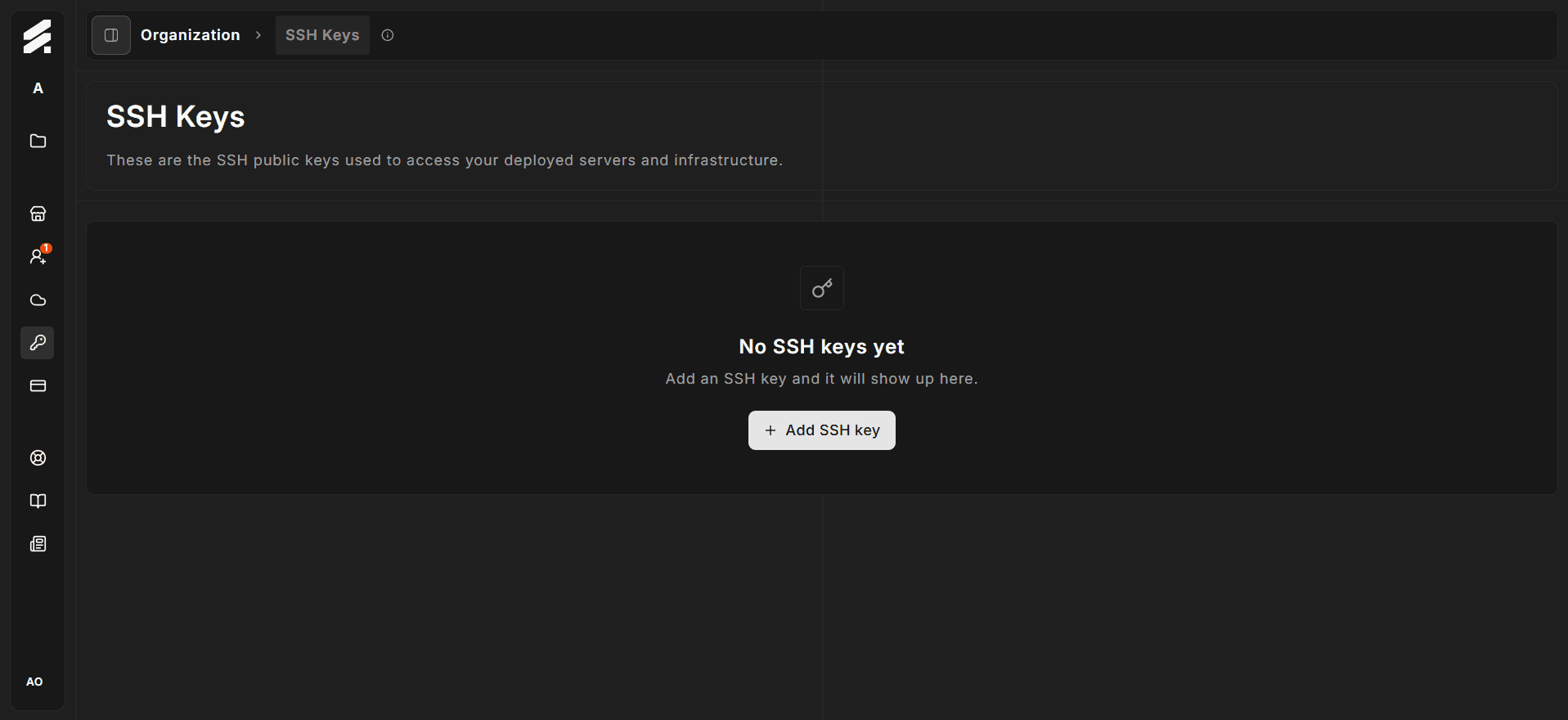
The SSH Keys page is the organization-level registry of public keys. Keys registered here can be applied to any environment provisioned under the organization, giving your team SSH access to the underlying servers.
Navigate there via Settings → Organization → SSH Keys.
Org-wide keys vs per-environment keys
StoreFrame has two levels of SSH key management:
- Org-wide keys (this page) — the shared pool of keys for your organization. You register a key here once, and it becomes available to all environments.
- Per-environment keys managed from the environment's own SSH Keys panel. See /docs/hub/environments/settings/ssh-keys for how to apply or remove individual keys from a specific server.
Changes made on this page do not automatically push to already-running environments. They affect new environments at provision time or when you explicitly manage keys on a running environment's panel.
Viewing your keys
The table shows all SSH keys registered to the organization. Each row displays:
- Name the label you gave the key.
- Fingerprint the SHA-256 fingerprint in the format
SHA256:…. This uniquely identifies the key without exposing the public key value. - Added the date the key was registered.
Use the search box above the table to filter by name. The table supports pagination for organizations with many keys.
Adding a key
Click Add SSH key to open the modal. Fill in two fields:
| Field | Notes |
|---|---|
| Name | A descriptive label, e.g. "Work laptop" or "CI Deploy Key". Maximum 100 characters. |
| Public key | Paste the full public key content (the .pub file). |
Supported key types: RSA, Ed25519, ECDSA (all NIST curves), DSS, and hardware security keys (sk-ssh-ed25519@openssh.com, sk-ecdsa-sha2-nistp256@openssh.com).
Hub computes a SHA-256 fingerprint from the key on the server side. If you try to add a key that already exists in your organization (same fingerprint), you will see a validation error. The same key can exist in multiple organizations without conflict.
Only public keys are stored. Never paste a private key (the file without .pub).
Removing a key
Click the delete icon on a key row to open a confirmation dialog. After confirming, the key is removed from the organization registry. It is not automatically removed from any running servers where it was previously applied — remove it from those environments individually via their per-environment SSH Keys panel.
Generating a key pair
If you do not have an SSH key yet, generate one locally:
ssh-keygen -t ed25519 -C "your@email.com"The command creates two files: ~/.ssh/id_ed25519 (private, keep secret) and ~/.ssh/id_ed25519.pub (public, safe to share). Paste the contents of the .pub file into the Public key field on Hub.
Related pages
- Per-environment SSH keys — apply org keys to a specific environment or add temporary keys