
Providers
Store cloud provider API tokens so StoreFrame can provision and manage servers on your infrastructure.
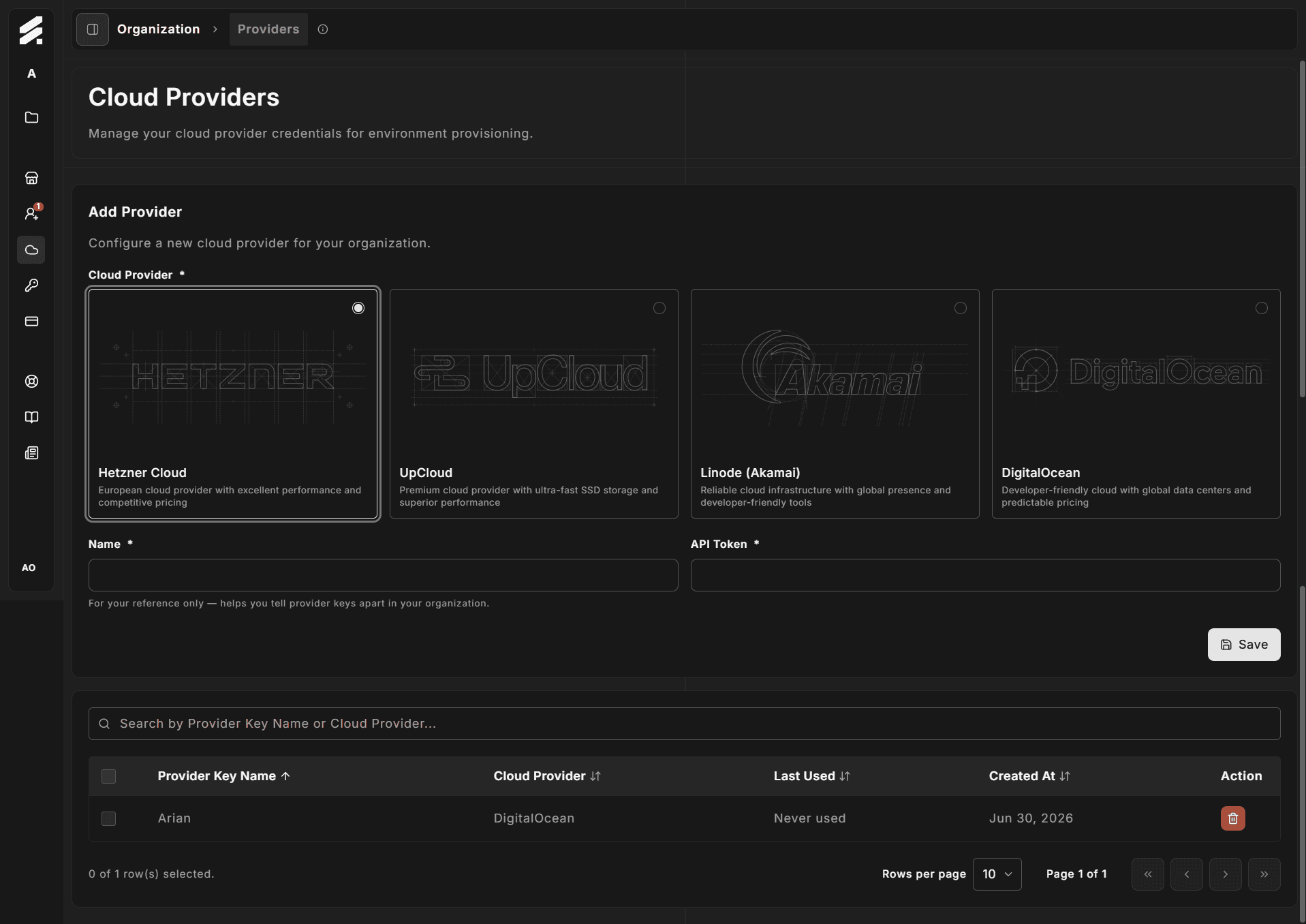
The Providers page is where you connect StoreFrame to your cloud account. StoreFrame uses the credentials you provide to create and manage servers on your behalf — this is the BYOK (Bring Your Own Keys) model.
Navigate there via Settings → Organization → Providers.
How BYOK works
When you provision an environment in StoreFrame:
- StoreFrame uses the credentials stored here to call your cloud provider's API.
- The server is created under your cloud account — you own it, you pay the provider directly.
- StoreFrame manages the Magento containerized stack running on that server.
Your cloud infrastructure costs (compute, disk, bandwidth) are billed directly by the provider to your account. StoreFrame charges separately for management Slots. See /docs/billing for the slot model.
Supported providers
StoreFrame supports four BYOK providers:
| Provider | Credential type | Setup guide |
|---|---|---|
| Hetzner Cloud | API token (Read & Write) | /docs/get-started/quickstart/providers/hetzner |
| UpCloud | API username + password | /docs/get-started/quickstart/providers/upcloud |
| Linode (Akamai) | Personal Access Token | /docs/get-started/quickstart/providers/linode |
| DigitalOcean | API token (Read & Write) | /docs/get-started/quickstart/providers/digitalocean |
See /docs/get-started/quickstart/providers for an overview and links to each walkthrough.
Adding a provider
Click Add provider to open the form. Fields depend on the provider you select:
| Field | Notes |
|---|---|
| Cloud Provider | Select Hetzner, UpCloud, Linode, or DigitalOcean. |
| Name | A label for your reference — helps you tell entries apart in your organization. |
| API Token | Required for Hetzner, Linode, and DigitalOcean. Stored encrypted and never shown in full after saving. |
| API Username / API Password | Required for UpCloud only. Stored encrypted; the password cannot be retrieved after saving. |
Click Save. StoreFrame validates credentials with a live API call to your provider before storing them. If validation fails, check the setup guide for your provider and confirm permissions (for example, Read & Write on Hetzner or DigitalOcean, Linode scopes that include Linode read/write, or correct UpCloud username and password).
You can store multiple entries for the same provider (for example, separate Hetzner project tokens or Linode accounts). Each entry is listed individually so you can revoke one without affecting the others.
Viewing and managing tokens
Each row in the list shows:
- Provider name and icon
- A masked credential — only the first few characters are visible
- Date added
To remove an entry, click the delete icon on its row and confirm the dialog. Removing credentials does not destroy any running environments, but new provisioning attempts that reference that entry will fail. Environments already running continue to run — they only need valid credentials for lifecycle operations (create, destroy, resize).
Security
Credentials are stored encrypted at rest. You cannot retrieve the full token or password after saving — if you lose them, delete the entry and add new credentials from your cloud provider dashboard.
Scope each provider's access to the minimum StoreFrame needs:
- Hetzner / DigitalOcean: Read access to plans and locations; write access to create, modify, and delete servers; write access to SSH keys where the provider supports installing keys at provision time.
- Linode: Personal Access Token scopes that include Linode read/write (and related resources StoreFrame uses during provisioning).
- UpCloud: Prefer a dedicated subaccount for automation rather than your primary login when possible.
Avoid root or unrestricted account access when a scoped token or subaccount works.
Related pages
- SSH Keys — register public keys that are installed on provisioned servers
- Quickstart: cloud providers — first-time provider configuration walkthroughs