
UpCloud — add API credentials
Connect your UpCloud account with API username and password for Bring Your Own Keys provisioning.
UpCloud uses HTTP Basic authentication for its API — the same username and password you use to sign in to UpCloud Hub. StoreFrame stores these credentials encrypted and uses them to provision servers on your UpCloud account.
Unlike Hetzner, Linode, and DigitalOcean, UpCloud does not use a single API token in StoreFrame. The Add provider form shows API Username and API Password fields when you select UpCloud.
1. Open UpCloud Hub
Sign in at https://hub.upcloud.com/.

For production use, consider a dedicated subaccount with only the permissions StoreFrame needs, rather than your primary login. UpCloud subaccounts use their own username and password — paste those credentials in StoreFrame instead of your main account if you follow that pattern.
2. Confirm your API credentials
StoreFrame validates credentials against UpCloud's account API. Use credentials that can read account details and manage servers:
- API Username: Your UpCloud account or subaccount username (the same username you use to log in to UpCloud Hub).
- API Password: The matching account password.
If you use two-factor authentication on your main UpCloud login, a subaccount created for automation is often easier to manage — the subaccount password is what StoreFrame stores, not a separate one-time token.
[Screenshot placeholder: UpCloud account settings — username visible, password entry implied for API use]
Do not share these credentials outside StoreFrame. Rotate the password in UpCloud Hub if you suspect exposure, then update the entry under Settings → Organization → Providers.
3. Paste into StoreFrame
In the Hub, go to Settings → Organization → Providers and click Add provider.
Fill in the form:
- Cloud Provider: Select UpCloud
- Name: A label for your reference — for example,
UpCloud — prod account. This appears only in StoreFrame and helps you tell credentials apart if you add more than one. - API Username: Your UpCloud username.
- API Password: Your UpCloud password.
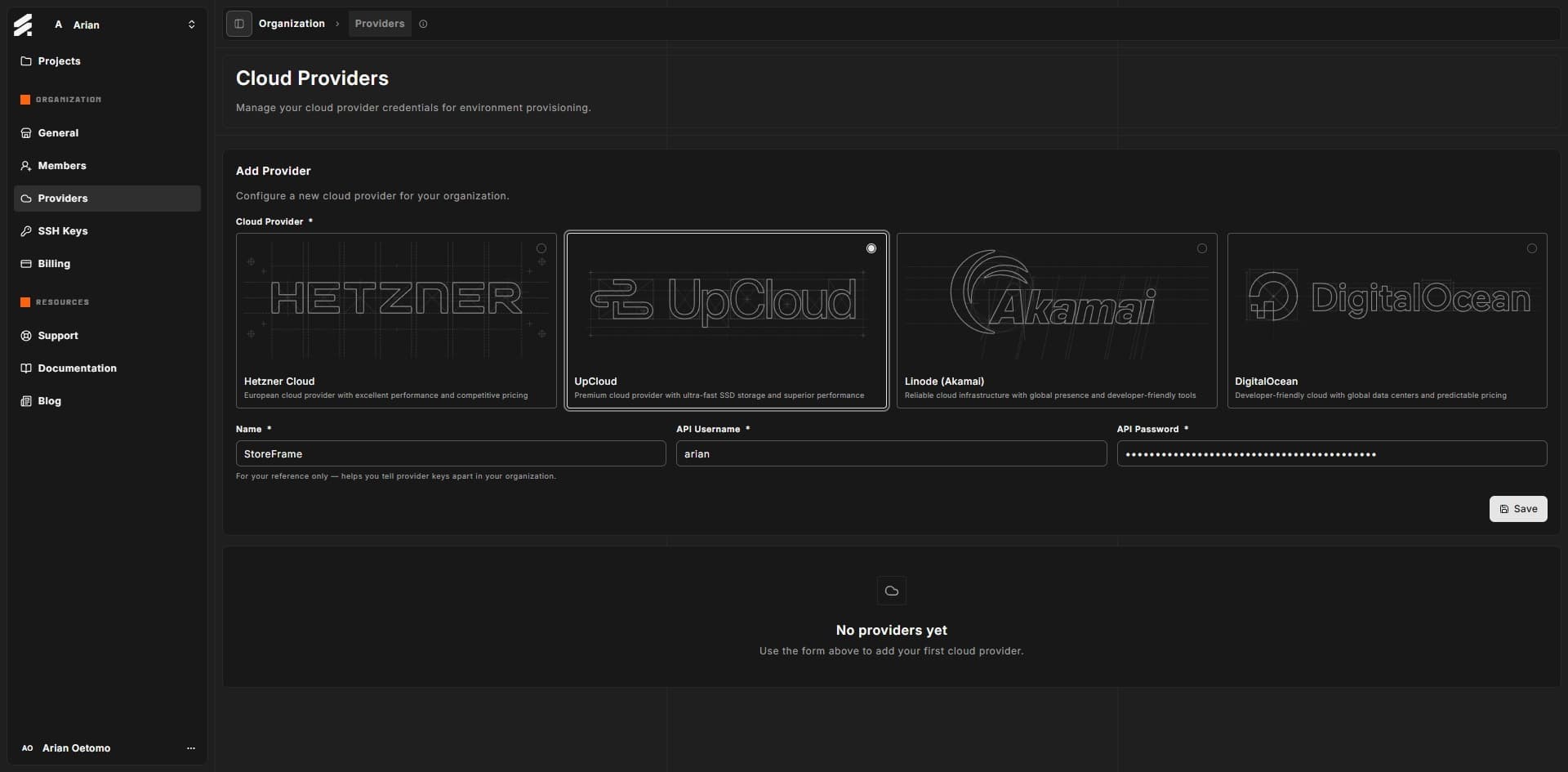
Click Save. StoreFrame validates the credentials against UpCloud's API. If validation fails, check the username and password (including typos), confirm the account is active, and try again.
Next
With UpCloud credentials registered, you can subscribe to a paid Project from any trial environment. See billing trials for the conversion mechanics.
You can remove and re-add credentials later from organization providers settings. UpCloud passwords cannot be viewed after saving — if you rotate the password in UpCloud Hub, delete the StoreFrame entry and add it again with the new password.