
Active jobs
Inspect the currently running background job and clear a stuck lock when the job has finished.
Every provisioning or maintenance operation on an environment — resize, utility change, domain update, SSH key sync, and so on — runs as a background job tracked in Hub. An environment can have at most one active job at a time.
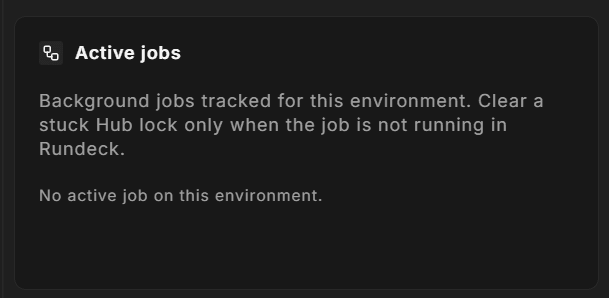
The Active Jobs panel shows the current job and lets you unblock an environment whose lock has become stale.
What the panel shows
When a job is active, you see:
- Job label a human-readable name for the operation (for example, "Resize Server" or "Deploy SSH Keys")
- Job type the internal job type identifier
- Execution ID the execution reference, useful when reporting an issue to support
- Progress percentage complete
- Start time when the job was created
- Status whether the job is still running, has finished, or cannot be reached
If no job is active, the panel shows "No active job on this environment."
Checking job status
Click Re-check status to query the latest status of the stored execution ID. Hub automatically polls every 15 seconds while a job is displayed, but you can trigger a check manually at any time.
The job status tells you one of the following:
| Status | Meaning |
|---|---|
| Active | The job is still running — do not clear the lock |
| Terminal | The job has finished |
| Execution not found | The execution record is no longer available (possibly purged) |
| No execution ID | The job never reached the platform; the lock can be cleared |
| Unreachable | The job system did not respond — verify manually before clearing |
Clearing a stuck lock
If the status confirms the job has finished but Hub still shows it as active, click Clear Hub job lock and confirm in the dialog. This removes the lock from Hub so you can start another operation.
Important: clearing the lock does not stop a job that is still executing. Only clear the lock when you have confirmed — via the Re-check button or by contacting support — that the job is no longer running. Starting a new job while another is still running can result in conflicting operations.
The Clear Hub job lock button is disabled when:
- The job is still active
- A blocking reason prevents release (shown in amber text)
After clearing the lock
Once the lock is cleared, the environment's job state is reset. You can then start a new operation — resize, utility change, destroy, and so on. Hub invalidates the environment's cached state automatically after a successful release.