
Custom domains
Map additional domains to your Magento store views and manage SSL certificates.
Every environment gets a default StoreFrame domain (<subdomain>.storeframe.store) at provision time. The Custom Domains panel lets you attach your own domains on top of that and map each one to a Magento store or website. This is also how you set up multi-store: no SSH or support ticket needed.
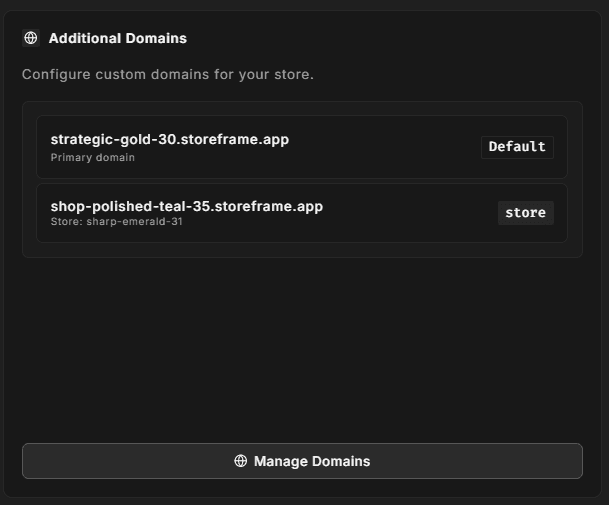
Default domain
The default domain is always listed first with a "Default" badge. You cannot remove it — it remains the fallback for SSH, admin access, and monitoring.
Additional domains
Each additional domain entry shows:
- The full domain name (
shop.example.comorwww.example.com) - The Magento store code it maps to
- The store type: Store (a single store view) or Site (a whole Magento website)
You can attach multiple domains to a single environment, which is useful when one Magento instance serves multiple storefronts or language variants.
Adding a domain
Click Manage Domains to open the domain management modal and fill in, for each domain:
- Subdomain, for example
www - Domain, for example
example.com - Store Code, the code of the Magento store view or website to serve, for example
defaultorde_de - Store Type, Store or Site
Save, and the platform applies the change to the environment. The store code must exist in Magento (Stores → All Stores); if it doesn't, visitors get the default store.
StoreFrame validates that the domain format is correct before saving.
DNS requirements
After adding a domain, point its DNS at the environment:
- Create an
Arecord for the hostname (for examplewww.example.com) pointing at the server IP shown in the environment header. Add anAAAArecord too if the environment has an IPv6 address. - If the subdomain is
www, the bare domain (example.com) is served as well, so point it at the same IP. - A
CNAMEcan only point at another hostname, never at an IP. Use it only if that hostname already resolves to this server.
StoreFrame issues the SSL certificate automatically once DNS propagates.
SSL certificates
SSL certificates are issued and renewed automatically (ZeroSSL by default). You do not need to upload certificates manually. When the domain resolves to the server, the certificate is requested and renewed without any action on your part.
Trial environments
Custom domains are not available on trial environments. The panel shows a locked notice with a link to subscribe and convert the trial to a production environment.
Removing a domain
Open Manage Domains, remove the domain from the list, and save. DNS changes are your responsibility — StoreFrame does not modify your DNS provider records.