
Resize server
Upgrade your environment to a larger server type for more CPU, RAM, or disk.
The Resize Server panel lets you move an environment to a larger server configuration. Upgrades are applied by reprovisioning the environment on the new hardware with the same data.
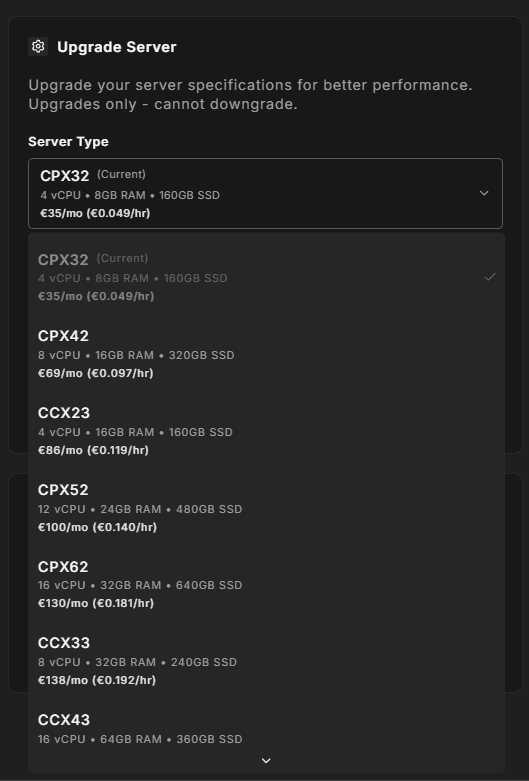
Selecting a server type
The dropdown lists all server types available at your environment's provider and datacenter location. Each option shows:
- Server name
- Hardware specs (CPU cores, RAM, disk)
- Monthly price
- Availability status — Available, Limited (low stock), or Unavailable
Your current server is pre-selected and labeled "(Current)". Some options may show a badge (for example, "Recommended") to guide your choice.
Upgrades only
StoreFrame does not support downgrading server types. The Resize Server button is disabled when the selected option is the same as or smaller than your current server. If you need to move to a smaller server, contact support.
This restriction exists because resizing involves a live migration of data, and providers generally support upward resizing more reliably.
Starting the resize
Once you select a larger server type and click Resize Server, the Hub:
- Creates a resize job
- Navigates you to the provisioning progress screen
- Runs the resize as a background job on the backend
The environment remains accessible during the resize attempt, but the server is reprovisioned. Expect a brief downtime window while the server is migrated. The exact duration depends on disk size and provider.
Locked states
The panel shows a locked notice instead of the dropdown when:
- Trial environment resize is not available; a Subscribe link lets you upgrade to a production plan
- Bare metal server metal environments use dedicated hardware that cannot be resized through Hub; infrastructure changes must be made manually
Error handling
If a job is already running on this environment, the resize attempt returns a warning and does not start a second job. Wait for the current job to complete before resizing.